Why Vizioneer?

My photo
Atlanta, Georgia, United States
The "Vizioneer" comes from mashing two words that have shaped my world for most of my adult life - Engineer and [data] Visualizations (or Vizes to those who know what's up). Graduating from first from Oglethorpe University in Atlanta, followed by Georgia Tech with my Bachelors and Masters in Civil Engineering, all of which taught me to think through anything and everything - problem solving, "engineering" solutions, teaching to the "ah ha" moments - is what I love to do. In 2010 that investigative, engineering mindset intersected a job change and a plunge into the world of Data Analysis. In the search for the next great thing I stumbled on to a data visualization and dashboarding product called Tableau software and things just took off. So now I guess you could call me that engineer with the sweet data visualizations - or just "The Vizioneer" :)

In 2013, I joined the incredible team at Slalom, focusing on Tableau and it's been an amazing experience. Recently in 2014, I was honored and humbled to receive Tableau's highest recognition of being named a Tableau Zen Master. Follow along to see what happens next :)

Wednesday, April 9, 2014

Day 9 (Birthday Edition): Streetview Integration

Well I did it.  I've survived the first 30 years.  In the words of Tim McGraw "I think I’ll take a moment, celebrate my age, The ending of an era and the turning of a page. Now it’s time to focus in on where I go from here - Lord have mercy on my next thirty years"  It's going to be a good day.  


I've been saving this one.  It's a personal favorite that I came up with myself at the end of 2012.  I was working on a parking meter project with the City of San Francisco.  They had the Latitude and Longitude of each of the 27,000 meters in the city.  I wanted to someone at the central office to be able to see what someone out in the field doing collections was seeing, so I came up with a way to show an interactive Google Streetview for each meter.  Once I figured out the correct URL (and parameters in the URL) it was as easy any other URL Dashboard action in Tableau.  I'm pretty convinced that I was chosen to speak at TCC last year because of this little trick.  Sasha and Morgan told me they'd never seen anyone do it before. So, with out further ado, I give you the Google Streetview hack.

I've had enough of Superstore data for a while.  I've gone a grabbed a list of US State Capitals from Wikipedia, and I'm going to use that table as my data source.  We're going sightseeing on state capitals around the country!  Here we go.

 First we're going to make a map showing all the state capitals.  In the data, create a State, City hierarchy (Select them both, right click and select "Create Hierarchy" - make sure state is on top of city).  Double click "State" and you should see dot in each state.  Hover over the State pill on the detail shelf, and hit the plus sign to get to the city level.  I excluded Hawaii and Alaska (not from my bucket list, just from the map), and changed the circles to gold stars - It makes them very capital-like.  It looks like this:


That's pretty much it for our dev on the sheet.  We're now going to make a dashboard.  This sheet will make up the top half and the Streetview will be on the bottom half.  I've size dashboard to be "iPad Portrait" in case you're interested.  I dropped the map in and followed that with a web page container, leaving the URL blank and hit ok.  At the moment it should look like this:


Now for the trick.  Click the map and go up to Dashboard>>Actions>>Add Action>>URL

Side note, I've just spent the last two hours trying to get a workaround from the "new" Google Maps which appears to have been my URL Streetview link.  As such, the only way I could make this trick work is to use Bing.  I never thought I'd see the day.  Thanks a lot Google.

Back to the program.  Tell the action to run on click.  In the URL, paste the following:
http://www.bing.com/maps/?v=2&cp=<Latitude (generated)>~<Longitude (generated)>&lvl=10&sty=x~lat~<Latitude (generated)>~lon~<Longitude (generated)>~alt~296.433~z~30~h~258.3~p~-29.1~pid~5082&app=5082&FORM=LMLTCC

It's not quite the same as the Streetview used to be.  But it is what it is.

You now have the ability to click a city and get the interactive streetview.  It should look like this:


Here's the dashboard.  If anybody can get the streetview to work, I'll buy you a Coke at TCC.


Many thanks - 
Nelson

Tuesday, April 8, 2014

Day 8: Conditional Formating

I've never met anyone who used Tableau who wasn't also very proficient at Excel.  Both tools can make your life easier in different ways.  One of the things that I love about Excel is how easy it is to create conditional formatting - ie Color cells based on their values.  When done right, all of your problems bubble to the surface very quickly.  In Tableau, this very doable but some what less than intuitive.  So today we dig into Conditional Formating.


One of the things I said at the outset was that I was going to give credit where credit where it was due.  I can remember the first time I saw this beautiful/hideous sheet by Jonathan Drummey (Tableau Zen Master at Southern Maine Medical Center):


I was left feeling something like "I'd never make that, but I'd love to know how he did it.  His workbook is here and it's probably still the best reference/example of how to do this trick.  If this is something you'd like to learn more about, I highly encourage you to download his workbook and dig into it.  BTW - he made this using Tableau 6.0 and 6.1 - just goes to show that a) he's a stud and b) anything's possible with Tableau when you have the following mindset when faced with a problem (from a presentation of his):

Step 1: There's a problem.  Your solution didn't work:


Step 2: Think of another solution: 


I'm going to show two examples.  The first doesn't require the hack and the second one does, but are a version of conditional formating.  

The first example, bar charts, doesn't require the hack.  I include it so you know when the hack is and isn't required (and why).  Let's hop back on to the SuperStore bus and dive in.  I'll throw a couple dimensions (Region and Department) on to the row shelf and a few measures (Sales, Profit and Unit Price) on to the columns shelf.  Its should like something like this:
Doing conditional formating with bar chart is pretty straight forward.  On the left side, on the marks self we have "All" which would do conditioning for "All" of the three measures (we won't touch this) and below it, each of the measures on the columns shelf.  For each of those we're going to click it and add that measure to both the color shelf and text shelf.  It now looks like this (I did also right justified the text):


This is conditional formating.  Nice and simple the colors change independently on each of the columns.  If we had done Measure Names on columns and Measure Values on rows, the colors would have been based on the total sum of the row as one band (like a zebra).  This is a common issue many have when then try to do conditional formating the first time.

Ok, step one is done.  Now for the hack.  Say I want it to look exactly like Excel's conditional formatting, numbers in rows and columns, colored by their values.  We'll channel our inner Zen Master Drummey and dig in.  

In practical terms, we're going to show the colors as one measure behind the text as another measure.  In order to do that we're going to need two placeholders.  These will be two calculated fields - We'll call them "One" (=1.0) and Zero (=0.0).  Once these have been created, duplicate the sheet we just made and remove the measures off the columns shelf.  Here's where we are:


Now we're going to go through a number of steps to get to Sales, our first measure.  The steps are the same for the other two measures, Profit and Unit Price.  Here we go.  Take "Zero" (which we just made, =0.0) and place it on Columns, followed by "One" (=1.0) also on the Columns shelf.  Right click both of them and change them from Measure to Dimension.  Right click "One" and select "Dual Axis", and this is what it should look like:


Click on "All" under Marks and remove Measure Names.  Next click on Zero under Marks - add Sales to the Color Shelf, One to the Size Shelf (Right click and change it to a dimension also well), click on size and drag the slider all the way to the right.  Now, click on One under Marks, change the Mark Type to Text, add Sales to Text, click Color and change it to white.  You should be here:


Let's clean up the axes.  Right click the top one ("One"), and select Edit Axis, change the title to "Sales", go to the next tab 'Tick Marks' and select none for both.  Now for the bottom one ("Zero") - right click and Edit Axis.  Switch to 'Fixed' from 0.0 to 1.0, delete the title, go to the next tab and select none for both (same as before).  When you're done, select the bottom axis and drag it down.  This is the finished product:


Now, do the same thing for the Profit and Unit Price and this is you final product:


And there you have it.  Thanks for playing along.

Nelson


Monday, April 7, 2014

Day 7: No More ABCs

One of the things that I really enjoy about Tableau is the community of awesome people who use this software.  There's an amazing amount of people blogging and tweeting about all sorts of things that help to push the limits of what's possible.  While surfing the Twitterverse last week, I came across this question from Tableau stud/Zen Master Matt Francis:


So today we'll answer a question that most people ask within the first few hours of using Tableau, and even the most seasoned Tableau Zen Masters are still looking for a solution for.  Today we'll solve the great mystery of how to get rid of the "ABC". 


Superstore  data set has been working for us and I don't want to stop a good thing - 'If it ain't broke, don't fix it' right?  We'll start by making a crosstab of headers.  I'm going with Region, Department, and Category on the rows shelf.  It should look like this:


Here comes the hack.  There's a number of steps to this one (so it's not always worth the trouble - use your discretion).  Here we go.  

You're going to have to create two calculated fields so let's go ahead and make those.  The first one you'll make is what I like to call "Blank" and it's calculation is: FLOAT("")


This one can be used over and over again, on every sheet you want to use this trick.

The other calculated field we're going to make is going to have the same name as the right-most dimension on the rows PLUS a space (because you can't create a calculated field with the same name as one that already exists in Tableau).  In our case the name of the this calculated field is going to be "Category ".  It's formula is going to be the same as the first one: FLOAT("")


There's a chance Tableau put one of those fields in Dimensions - if so, drag it down to measures.  Now we're going to add Measure Names to the Filter and select the two calculated field we just created:


Next take "Measure Names" to the columns self and add Measure Values to the text shelf.  Things should look like this:


We're almost there.  Take the original dimension "Category" and put it on the text shelf.  Now right click the header that says "Blank" and select Hide.  Lastly, on the rows shelf, right click the "Category" dimension and uncheck "Show Header".  You should now see this:


Finish it off by clicking on the text shelf and making it left justified (it is test you know :)).

And VoilĂ  (feeling French today).  


Should it be this hard? Nope.  Are there other ways to do it? I'm sure there are.  But this is my favorite.  And now we've solved one of life's great mysteries - How to get rid of the ABCs.


Thanks for following along!

Nelson

Sunday, April 6, 2014

Day 6: Auto Save Hack

It was about my third day at Slalom.  I was jamming on some interesting data, a couple hours in and... BAM! It happened.  The dreaded spinning hourglass.  I knew what was coming next.  "Tableau has stopped working.  Click here to restart."  And by "restart" you mean lose everything you've done since your last save. You see in case you haven't heard Tableau doesn't have Auto Save - it's an oversight I guess.  Clearly it's activable, but it hasn't happened yet.


So in the moments after losing it all, I vowed it would never happen again.  After spending an hour thinking and Googling, I had an idea.  All I had to do was have the computer hit Ctrl+S every five minutes when I was in Tableau.  Simple.

I found a third party program called AutoHotKey that allowed for just such a automated miracle.

Before I post the 'how to' on this (which I originally posted a few months ago), a few words of warning.  Some people LOVE this hack (myself included - It's saved me so many hours!) and some people don't - they say that the minuses outweigh the pluses.  I disagree with the naysayers on most of their points, but it does require some thoughtfulness if you chose to use it.  Here are some things to think about.

  • It's going to save (duh) (unless you pause it/turn it off) - so don't think you can open a file, try some crazy stuff and revert back to the beginning just by hitting X and selecting "Don't save".  It saved while you did those crazy things.  Therefore, if you're going to do something crazy create a new file or select "Pause the script".  If your crazy idea works out just save back over the original file or turn the script back on.  Just be thoughtful.
  • On the flip side (a positive) you do not lose any "Undo"-ability.  You have the ability to hit the back arrow and take the file all the way back to the original way it was when you first opened it (if you had the patience to click that many times).
  • If your file becomes very large you will begin to notice the amount of time it takes to perform the save.  If you lower you cycle to time to 90 seconds or so, it could get really annoying.
But even with those caveats, I continue to wholeheartedly endorse the Auto Save Hack.  So here it is:

The first thing you need is a lovely piece of third party software called AutoHotKey.  AutoHotKey allows you to write macros of all types that are totally customizable.  We are going to use it to write a very simple script that will automatically save your Tableau workbook every five minutes as you work on it.


Download and install.

Fire it up and you’ll see that it comes with a pre-canned script (typically saved in your ‘My Documents’ folder’).

Open up Notepad and paste the following text:

Loop  ;Do this forever
IfWinActive ahk_class TableauMfcMainWindow  ;If my active window is Tableau, then….
{
Send ^s ;Hit Ctrl+s (Save)
Sleep 300000  ;Do this every 300,000 milliseconds (aka - 300 seconds, bak - 5 minutes – this is totally changeable)

}


Go to File>>Save as
Select ‘Save as type’=All Files


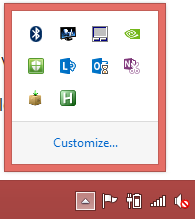
Save it as ‘Save Tableau 5 min.ahk’ (make sure you specify to save it as an .ahk (AutoHotKey file)).  Now, if you double click the file you will see a little icon on the toolbar tray showing that the macro is up and running.


Now, go to the file’s location and create a shortcut.


Save that shortcut into your start up folder. 
(On Windows 8 it’s at: C:\Users\<username>\AppData\Roaming\Microsoft\Windows\Start Menu\Programs\Startup)


That’s it!

Now, starting from the time your computer boots up, while you’re running Tableau, your active workbook will save every 5 min and you won’t even notice it (all least not after you’ve given it a file name).  But check your workbook repository for the time modified for the file and you’ll notice that it’s updating automatically and always within the last five minutes.

I hope you find this helpful!  If you do, please let me know in the comments below.

Many thanks –

Nelson