The "Vizioneer" comes from mashing two words that have shaped my world for most of my adult life - Engineer and [data] Visualizations (or Vizes to those who know what's up). Graduating from first from Oglethorpe University in Atlanta, followed by Georgia Tech with my Bachelors and Masters in Civil Engineering, all of which taught me to think through anything and everything - problem solving, "engineering" solutions, teaching to the "ah ha" moments - is what I love to do. In 2010 that investigative, engineering mindset intersected a job change and a plunge into the world of Data Analysis. In the search for the next great thing I stumbled on to a data visualization and dashboarding product called Tableau software and things just took off. So now I guess you could call me that engineer with the sweet data visualizations - or just "The Vizioneer" :)
In 2013, I joined the incredible team at Slalom, focusing on Tableau and it's been an amazing experience. Recently in 2014, I was honored and humbled to receive Tableau's highest recognition of being named a Tableau Zen Master. Follow along to see what happens next :)
Today, April 14th is a big date in the Davis family. Seven years ago we walked down the aisle and made it official. She became my better half and I got to continue to tell her nerdy jokes that she still pretends are funny (bless her heart). (And everyone said 'awwww'). Dates. Today's a big one for us. I'm sure you have some big ones too. I also bet the same thing can be said of your data (see that transition???). I love looking at trends over time and some of the filtering that you can do in Tableau is pretty awesome. Right up to the point where you want to be able to filter multiple data sources based on date filter. That becomes either very complicated or impossible based on your skill level. Today we're going to look at how you can still give the user almost complete control over date filtering even when your dates are coming from multiple sources.
I'll give you the actual set up of where I had to come up with this one. I've mentioned before that my first assignment after joining Slalom was to create a demo dashboard based on financial data. I created about seven or eight dashboards that all tied together and there were multiple data sources, so filtering the data based on date from just one source was inadequate. I needed a way for the user to set their date filter a have the entire workbook update. I knew the only way to do it was with a parameter, but how would I tie it all back together? This was a bit of an advanced move but three parameters and two calculated fields later, I was cooking with hot oil. So who's ready? Let's dig in. We're going to make some assumptions: - You have multiple data sets - They all have dates that relate the time periods to each other - I'll show you what to do on one of these data sets/sheets and you can iterate it as many times as needed (ie in each of your data sets). Let me explain what the end product is going to be and we'll work backward. We're going to create a functional version of what you see below (which practically would show the four quarters of 2013):
Above you see a date filter where the user inputs three things (each one is a parameter, going in order left to right): - The first is the number of time periods. An integer that must be greater than 0. - What the time period unit actually is - weeks, months, quarters or years. This is going to come from a string. - What time period cut off is - I chose to give the ability to cut off at the end of each quarter, or to have no cut off and use "As of Today" as an option. I chose to do this as a string but it's probably possible do it as a date parameter as well. So let's make each one. First the number of time periods - it's just an integer that has to be greater than 1, like this:
Ok, next - the different units of time. We do this as a string with the time periods written out (lower case, in the singular form), like this:
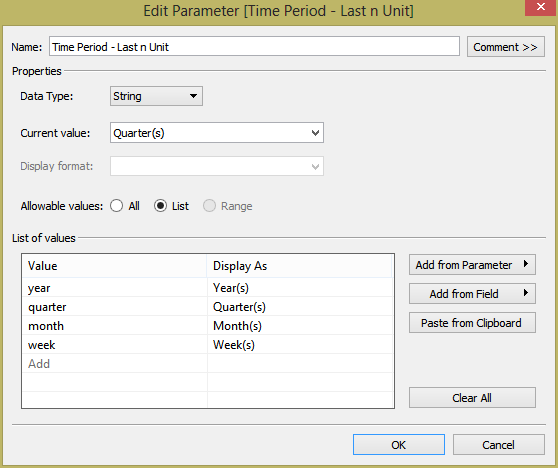
Here's the last one, the cut off date. I've done this as a string, but it's probably doable as a date type (the issue I run in to is passing in Today() in here as a date - not sure that it's fixable using this as a date type parameter, thus I go with the string type). Here's what it looks like (I show both YY and YYYY to show that they both work and because I'm a goofball):
So now all of our parameters are made. We now have to create two very important calculated fields. And here's the thing - both of these field must reside in ALL of you datasets that have dates. That's right ALL of them. Probably a good time to mention that Day 57 of #Tableau30for30 would for have been on Copying Calculated fields from one data source to another, but alas there's only 30 days in April (thank the Lord). So I'll let you figure that one out. The first calculated field is a case statement that switches that cut off date string parameter to a date type. Here's what it looks like:
case [As of Date Param] when "Today()" then Today() else DATE( [As of Date Param] ) end The other calculated field is a boolean that brings everything together. I wish I could say that this was really simple, but the first time I wrote it out and got it working, it took a couple hours to get just right. The idea is to show everything going back to an N number of time periods through the cut off date. I could try to explain the whole thing, but that would take a while and you would feel like I was insulting your intelligence to think you couldn't see this and understand it. And the last thing I'd ever want to do is insult the intelligence of a blog reader. I like you guys. And your friends... who you just told to subscribe... Oh, yeah, back to the calculated field ([Time Period] is my date field from my data):
DATETRUNC([Time Period - Last n Unit], dateadd([Time Period - Last n Unit],(-1*[Time Period - Last n Number]+1), datetrunc([Time Period - Last n Unit], [As of Date] )) )<=[Time Period]
and [As of Date]>=[Time Period]
Now you got it! And again, this has to go in to every data source (and needs to be modified if the name of your date field changes). This calculated field, the one I called "Date Filter - Global" also needs to be added to EVERY SINGLE ONE of your date sensitive sheets in the filter shelf AND added to context EVERY SINGLE TIME. Is that a pain? Sorta, but you needed a way to filter dates, and once this works it's beyond awesome. Lastly, you'll need to include those three parameters in each of your dashboards that are going to leverage this solution. To end where we began, this is how mine looks:
I hope that helps. If so, drop me a line and let me know. See you tomorrow, we'll be half way home. Many thanks! Nelson
I would argue (and win) that blending is either one of the best or worst features of Tableau. Sometimes it's brilliant and works exactly how you need it to (such as my current project I'm working on here in Atlanta, which wouldn't be possible without blending) and other times (like when you need to do a row level join between two data sources of different types (and you don't have Alteryx)) it feels half baked and inadequate. But since I'm a glass half full kinda guy, we're going to look at a trick to leverage blending when your normal filtering doesn't work the way you want it to.
For those of you with much experience in Tableau, I'm going to go ahead and answer the voice inside your head that as you read this will say, "That's not the only way to do that". That's correct. There's many ways to do this trick. There's always many ways to do a trick - Pick a card, any card (see what I mean?). But this is a simple way to handle tricky filtering. Here's the set up. I have population data on all fifty states in the in the US. I want to show it in a map, but I only want to show the lower 48 (it fills up the window better and who really cares what people it Hawaii think anyway!?!?). Problem is when I click to filter and then unclick to un-filter to show all, the state filter where I excluded Alaska and Hawaii also disappears and the map returns to show everything, and I'm left with a killer view of the Pacific Ocean right in the middle of my window. What I want to happen is that my exclusion of Alaska and Hawaii will remain, regardless of the filtering being done as a result of actions on the dashboard. We have a dashboard that looks like this (showing Alaska and Hawaii in the bar chart but excluded in the map):
So here's what I've seen done before (and then we're going to do a trick): Once you have the visualization(s)/dashboard created, right click on your data source and select duplicate.
Now, in the duplicated data source bring "State" on to the filters shelf of the sheet with the map. Hit the "Exclude" check box, and check off Alaska and Hawaii.
Now, the the map should update and show only the lower 48. Now right click on the filter in the filters shelf and click Apply to Worksheets>>Selected Worksheets, and now check off all the other sheets in the dashboard you wish to apply this filter. Now when you select a state and then deselect it, you keep only the lower 48. Pretty neat huh? "But Nelson, I'm looking at 30 Million rows of data. Do I really need to duplicate the whole thing?" Of course not! Here comes today's trick. Instead of duplicating the entire primary data source, create a new sheet with just the field you want to do the blend filtering on. For the state example it would look like this:
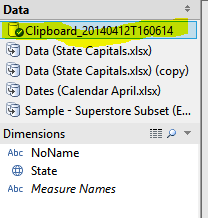
Now, select Worksheet>>Copy>>Crosstab. You now have this data sitting on your clipboard. Simple hit CTRL+V and Tableau will paste that data into your workbook as a data source - you'll see it up there at the top left, starts with "Clipboard...."
The great thing is how small this data is. It's only the number of distinct rows in your data (So 50 rows for fifty states :)). Now, I'll use this clipboard data as my blended data set and follow the same steps as above. Now that's a trick. I've posted two versions of the same dashboard, one using the blended data as the filter, the other with a normal filter, so you can see the issue I described with the normal filter:
I'm probably the only person that didn't know about this one. I should be mad y'all didn't tell me. But I'm finding the "Describe" button to be super useful. What's that? What's that you say? You've never heard of the "Describe" button either? Well, like many of the other tricks, it's money in the bank when you need it.
It doesn't matter what data set you use on this one. Today we're talking about a concept and a trick that makes the concept easier. Here's the deal. I've been doing some work recently where I have to make a table that contains a bunch of different metrics. Problem is they all have different filters and look at different fields (and again they all have to be on the same table). Given this set up, using the Filters shelf isn't going to work as it filters everything the same way. Therefore, you're going to have code in the filters into the calculated field into the measure. Stop me if you've heard this on before.
So as I write these equations, I need to know what to filter - ie what's in the data, and that's where our trick comes into play. Here's the example. This particular metric (the one I'm making up as I type) requires I divide Furniture sales in the West Region by the number of Technology units sold in the East Region. So what does that look like as a calculated field?
Create a calculated field. We'll call it "Weird Average" and we're going to write an if statement that has booleans (T/F) inside of the "if" part and a measure in the "then" part of the statement. Because we're looking at two different numbers, we'll have to do the if/then twice, and aggregate each one.
As I begin to write this out, I forget what's actually inside of "Region" - is it West or Western? And here's the trick - there's a cute little button called "Describe..."
When you click it, you see a bunch of information, but you don't immediately see anything that's helpful. Then there's one more magical button called "Load".
I hit that and here's the awesome thing - now I can see exactly what's inside of this data field. Turns out it is called "West" and not "Western". I can select it, hit the copy button, close out and paste it into my formula.
And this is what it looks like:
This is really helpful for spelling and abbreviations that might be in your data. I discovered this a few weeks ago, and now I'm using it constantly. Here's what that full formula looks like (remember - I divide Furniture sales in the West Region by the number of Technology units sold in the East Region):
Ta-da! Fun with metrics! Hope you enjoyed! Many thanks - Nelson
This is a another quick one, and as far as skill this one is on the simpler end. But if you don't already have this in the toolbox, it's a great trick to learn. Today we'll look at how to use a parameter and a case statement to give the end user the ability to switch through different metrics.
Before we get into it, you should know that this trick will work with any type of visualization - Maps, Bar Charts, Line Charts, Packed Bubbles, Tree Maps, etc.... As an aside, we'll chat more on switching to different visualizations later in the month, as well.
As for today, let's get going. Here we go with the Superstore again. We're going to do two different uses of this, starting with the simpler of the two. We're going to start by creating a parameter. Once you understand a little bit about parameters, you begin to realize they're super powerful. They exist outside of your data sets (and are therefore not dependant on the data). They are leveraged when you create a calculated field and include the parameter to interact with the data. It's a bit tough to explain the theory - You'll see in a minute what I'm talking about. The first thing we're going to do is a create a string parameter. Right click on a measure and select "Create Parameter", the title of which is going to be "Measure Switch". Now we're going to give the user the ability to switch between three different measures. Therefore we're going to create a list of three smartly named parameters. On the left side is the actual value of the parameter (the value that will be referenced in the upcoming calculated field), and the right side is the pretty name that the user clicking on the parameter will see. Fill it out like so:
Awesome. Now, as we said before in order to leverage the parameter we have to create a calculated field. Our calculated field is going to be a statement that looks the parameter, and based on the value will pick a metric to show in the visualization. Here's what it looks like:
I've chosen to include the aggregation along with the measure. You don't have to do this, but if you don't, the default is that Tableau will to choose to SUM on yourbehalf - Just FYI. Now, it's viz time. Throw "Region" on rows and "Department" columns and now add your newly calculated field "Switched Measures" to columns. Also add it to the color and text shelf, add some formatting and voila (changes based on the different parameter values):
So there's a simple example of using a case statement and parameter to give the end user more control over a bar chart. But as we said this can be used on all sorts of visualizations. Maps included. So we're going to give it whirl as well. Big thanks to Will Jones and the Interworks team for the spark for this idea. New sheet. Change the marks to filled map and double click "State". We're going to eventually create a dual axis map, so go ahead and Ctrl Click Duplicate Latitude on the rows shelf, and it should be looking like this:
On the marks shelf, click the top map and add the parameter we made "Measure Switch" to the colors shelf. Now click the map below that one - add the calculated field we made "Switched Measures" to the text and color shelf, change the color to the gray to black palette, and click on color to change the transparency a little more than 50%. Lastly, right click on that second pill on the rows self and set to dual axis. Here's what it looks like:
In a previous life (ie a college intern) I worked in construction estimation. I hated it. I didn't have the patience for it. In construction estimation a group of people work for a general contractor and pour over architectural plans for weeks in order to add up the cost of building every little piece of a multi-million dollar building. I distinctly remember days where I would count door knobs for hours. I guess someone had to do it. All of the work that this team did would ultimately come together on "Bid Day" where the sum of all of those numbers would be added together to arrive at one very large total number. All that work for ONE BIG NUMBER!
Sometimes, one number is all that matters. Tableau does data VISUALIZATION. Trust me, I get it. But if there's nothing to compare to, no context or other numbers, there's no way to create a visualization of meaning. That's why sometimes, you just need to show one big number. Here are a few examples of this technique: My Super Bowl Commercials Viz of the Day -
This is going to be short and sweet. Here's the trick. Each one of those boxes is a sheet is the workbook. The sheet is just an aggregation of a measure, formated as big text, with smaller text saying what that number is. Let's hop into Tableau, back to the world of SuperStore Data. This is going to be quick. Pick a measure (I'll chose "Sales") and drag it to the Text Shelf. That's it. Don't forget to tip your waitress. Kidding, but only sorta. Now click the test shelf. Click the ellipses ("...") and it pulls up a box you can format:
Select the current text and increase the font size to make it big (I did 20) and go to a new line and write "Sales" smaller and lighter underneath, like this:
Hit ok and now you should have something like this:
Just repeat for each "Big Number" you need to create. When you bring them on to a dashboard, make sure they are part of the target of your filtering actions so that clicking on something in a visualization will also filter the "Big Number". Nice and easy.